 Guides
How to save recipes from YouTube videos
Turn a 20-minute YouTube cooking video or a Short into a written recipe you can cook from, with ingredients and steps, in a few taps on iPhone.
Updated September 11, 2026
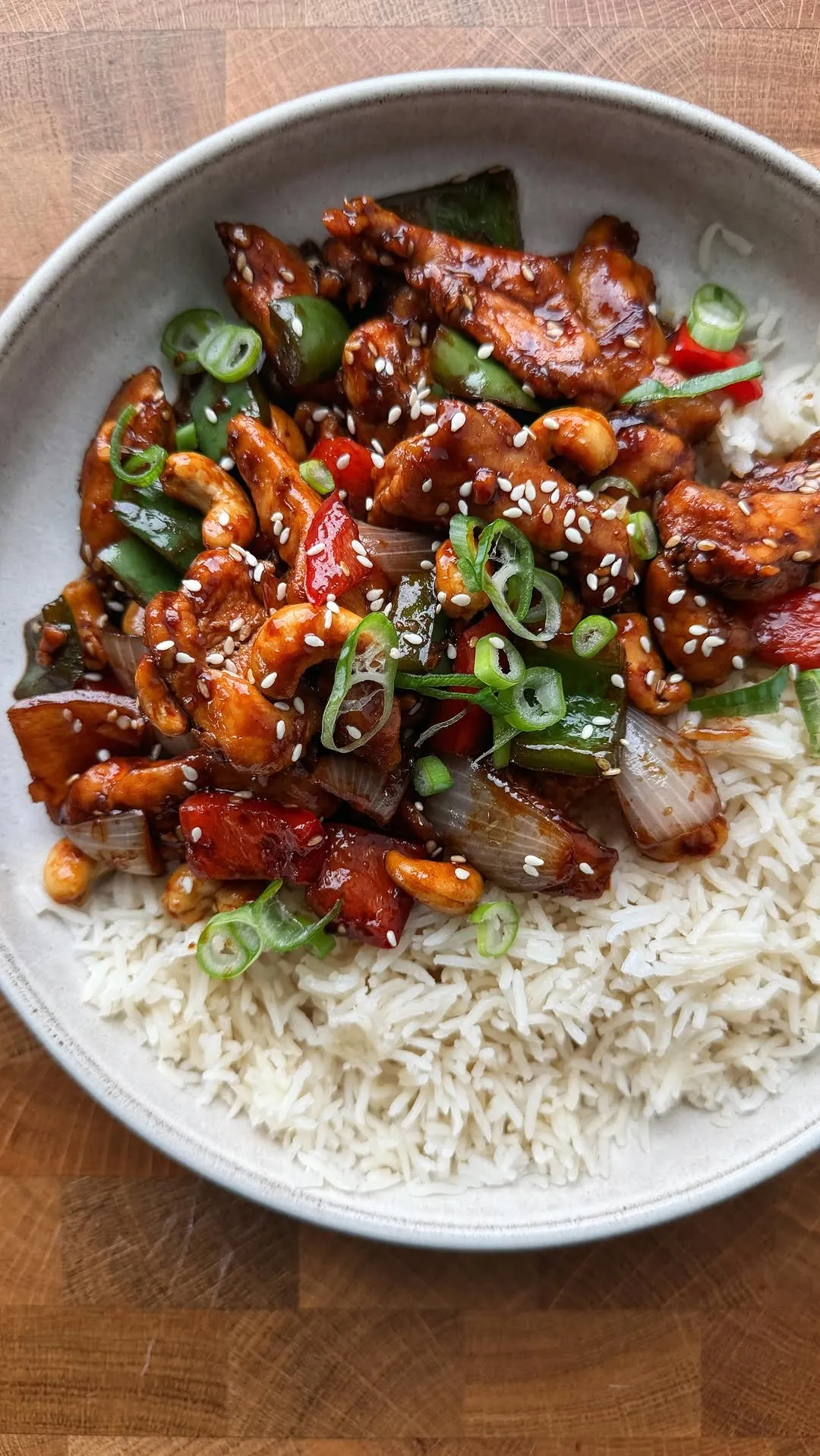 ♥
♥Honey Cashew Chicken
Sticky, crunchy 20-minute stir-fry
- 500 gchicken thighs
- 100 groasted cashews
- 3 tbsphoney
- 60 mlsoy sauce
- 3 clovegarlic
- 1 tbspfresh ginger
YouTube is the opposite problem from TikTok. The recipe is all there, in glorious detail, spread across twenty minutes of a chef chatting while they chop. Watching it is a pleasure. Cooking from it means scrubbing back and forth with oily hands.
Here is how to get a clean recipe out of any YouTube video or Short, on your iPhone, without typing it up yourself.
Save a YouTube recipe in four taps
- 1
Open the video in YouTube and tap Share
On a regular video the Share button sits under the title. On a Short it is on the right side, under the comments icon.
- 2
Choose ReelMeal from the share sheet
YouTube shows its own share row first; scroll to More or the iOS icons and tap ReelMeal. Copy link and paste into ReelMeal works too, including for links you get from a browser or a message.
- 3
Review the recipe ReelMeal wrote
In about fifteen seconds you get a title, the ingredient list with quantities, and numbered steps. ReelMeal listens to the audio, reads any on-screen text and looks at the frames, so it works even when the caption only says “recipe in the comments”. Fix anything you like, then tap Save.
- 4
Cook it, or shop for it
Open the recipe and tap Start Cooking for a hands-free, step-by-step mode, or add the ingredients to your shopping list with one tap. The original video stays linked, so you can always watch the creator make it.
Why the Watch Later list isn’t a cookbook
Watch Later and playlists remember videos, not what is in them. There is no way to know which of your forty saved videos has the chickpea curry without opening each one.
Long videos rarely put quantities in one place. The description might list the ingredients, the method is somewhere at minute eleven, and the tip that makes it work is a throwaway line at the end. ReelMeal pulls all of that into one recipe with steps in order.
And you can’t scale a video. If the chef cooks for six and you cook for two, ReelMeal’s serving adjuster does the arithmetic and the shopping list follows.
Long videos, Shorts and descriptions
For long videos, ReelMeal uses the description and the spoken instructions together, so a video with a proper ingredient list in the description imports almost perfectly. Videos with no description still work, because it listens.
Shorts behave like TikToks: quick, dense and often with on-screen text. ReelMeal reads that text along with the audio.
If a video contains several recipes, import it once and ask the sous chef to split it, or import it twice and trim each copy down to the dish you want.
The link to the original video stays attached to the recipe. When a step is unclear, tap the YouTube badge on the recipe photo and the video opens at the source, so you get the written steps for cooking and the footage for the technique. Timers in cooking mode use the times the chef mentions, and you can nudge them if your oven runs hot.
Cooking for a different number of people is the other big win. Set the servings and the ingredient quantities follow, and so does the shopping list. A recipe written for a family of six becomes dinner for two without a calculator.
Questions
Does it work with YouTube Shorts?
Yes. Shorts import the same way as full videos, using the audio and any on-screen text.
How long can the video be?
Most cooking videos, including 20 to 30 minute episodes, import fine. Very long streams take longer and work best when the description has an ingredient list.
Will it keep the creator’s exact quantities?
Yes, when the creator states them. Where they say “a handful”, ReelMeal keeps that wording rather than inventing a number, and you can edit it.
Is saving YouTube recipes free?
You can download ReelMeal and import a recipe for free. Unlimited imports are part of the subscription, with pricing shown in the app.